
QUICK DEV TIP #113 UE5 - Multiple Viewports
Today’s Quick Dev Tip is a really straightforward one, but surprisingly, it’s something a lot of people still don’t realise Unreal can do!
Did you know you can have multiple viewports open at the same time!
If you would prefer to watch my video version, check it out here
This can be super helpful when you’re working up close on a specific area of your level. Having a second viewport gives you a pulled-back view so you can see how things look from the player’s perspective, from a specific angle, or even from a more macro, overall layout view.
And it’s really easy to set up. In the very top editor toolbar, click Window, then Viewport.
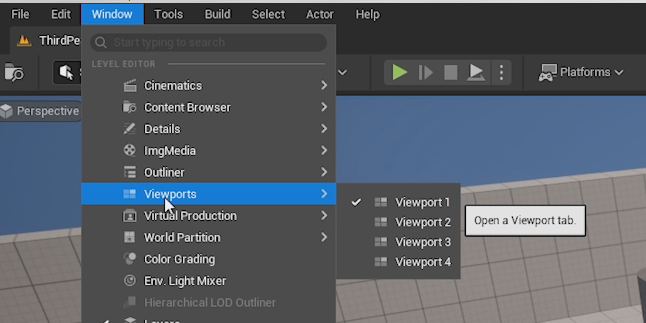
You can have up to four separate viewports open at the same time.
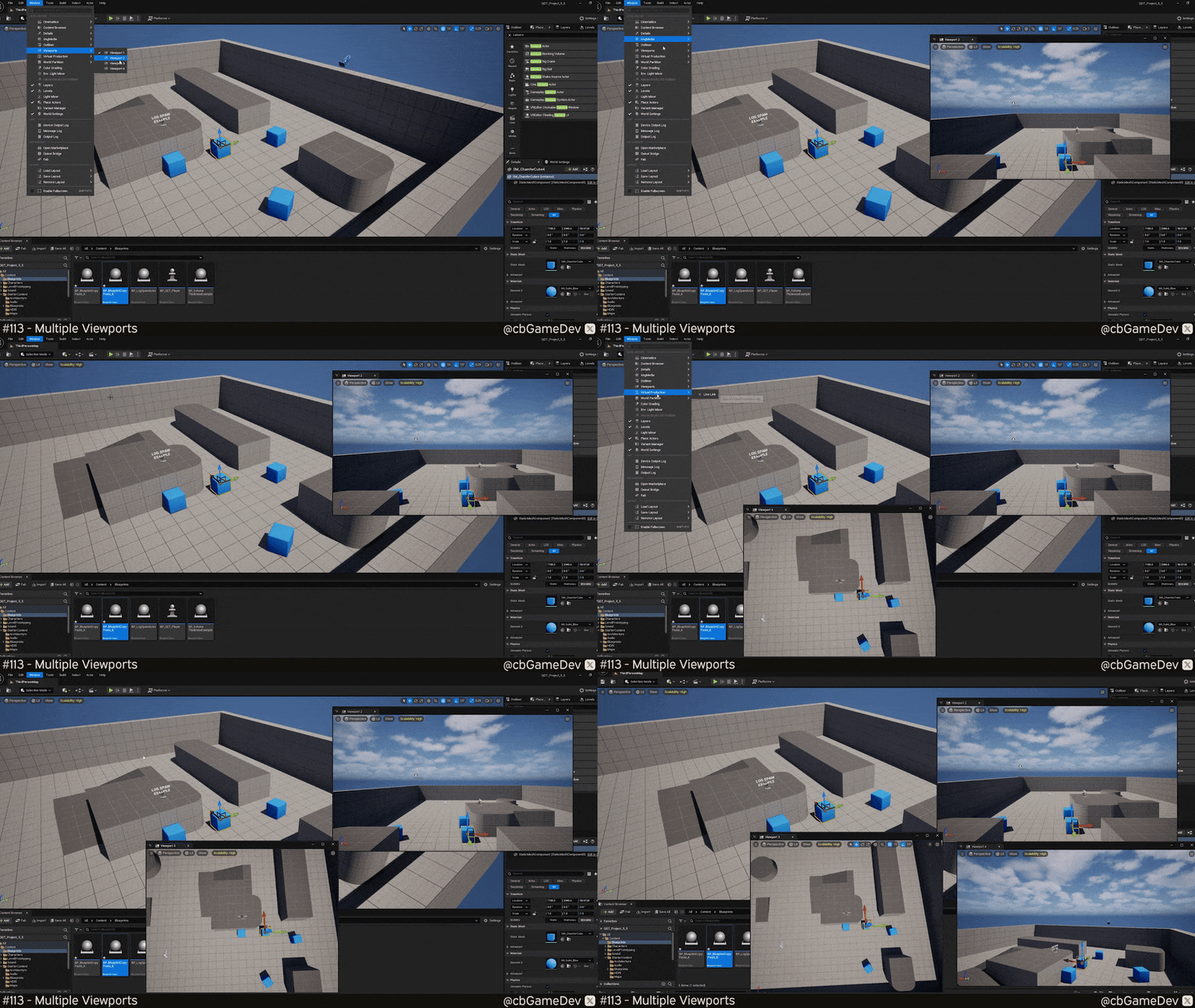
You can set each viewport to whatever angle or view mode you like. In my example below, I’ve set one to a top-down view, one to a pulled-back overview, one to a closer inspection view, and then I have my main working viewport where I’m actually navigating the level.
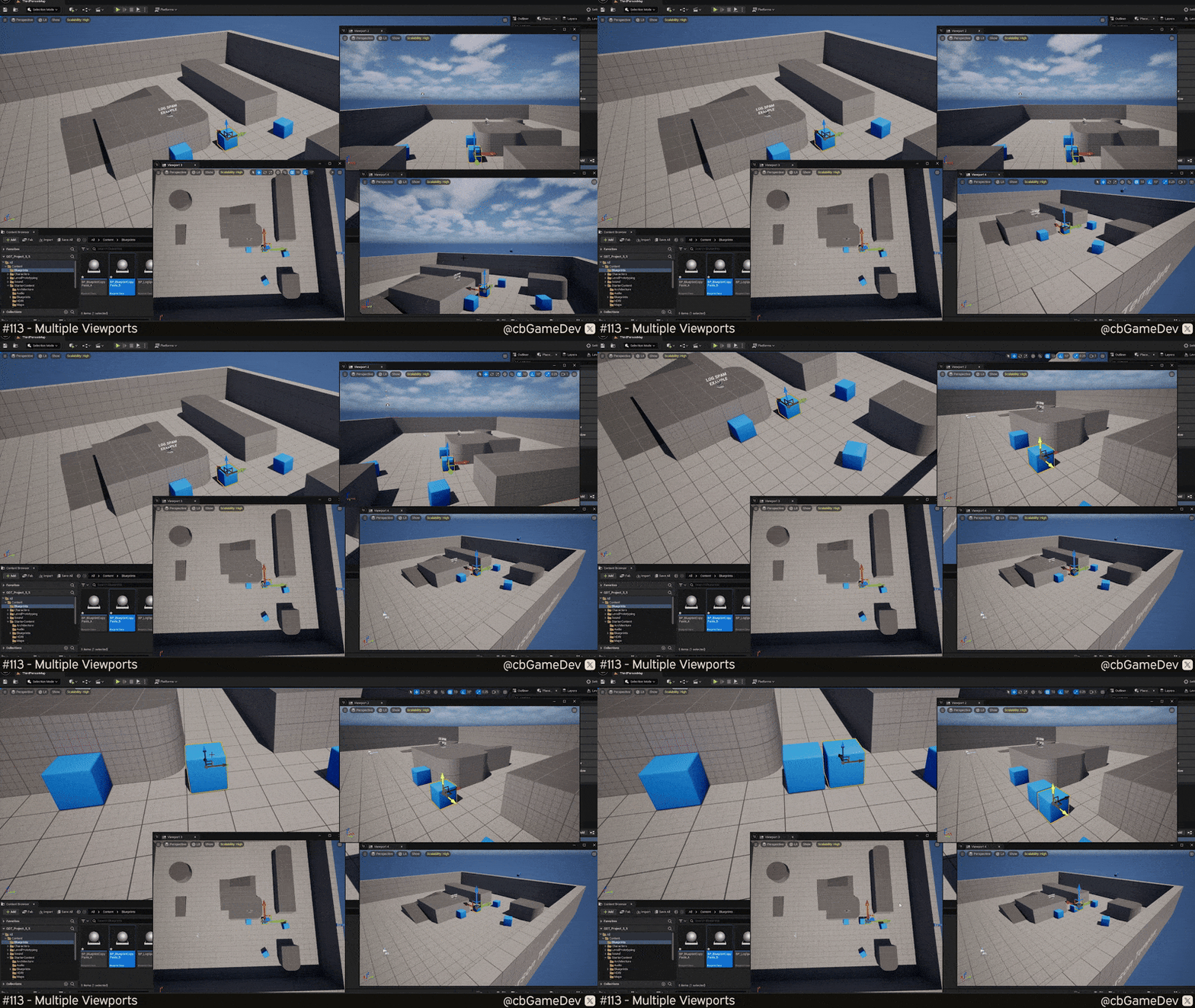
The great thing is that all viewports update together. Any action you take in one viewport is instantly reflected in the others.
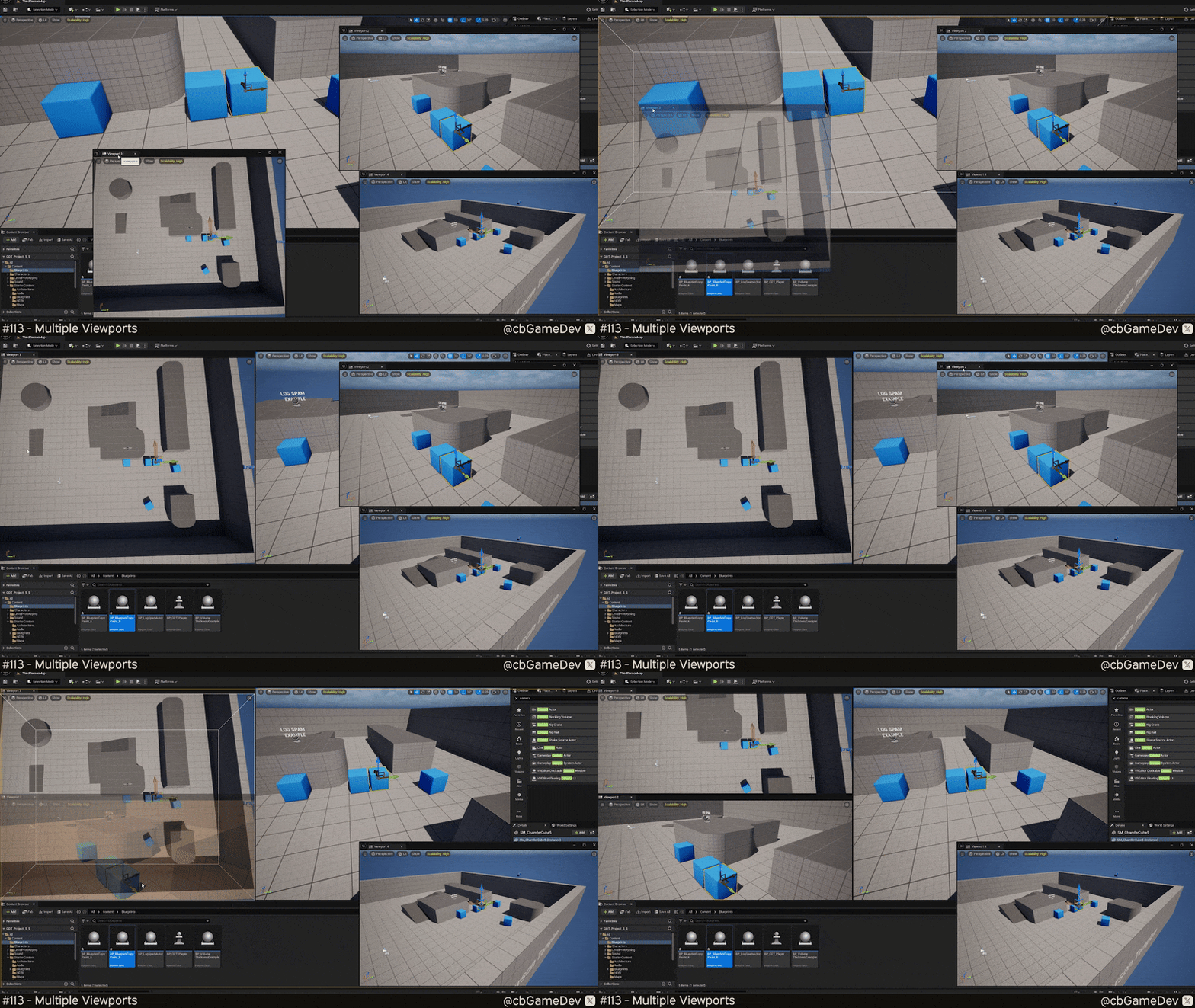
If you have multiple monitors, I’d usually recommend dragging these extra viewports onto a second screen.
But if you’re working on a single monitor, you can still position them however you like. Just drag each viewport by its tab and dock it anywhere in the editor UI. As you can see in the GIF below, it’s pretty adaptable, so you’re bound to find one that works for you.
You can also set a specific viewport to use the view of a camera already placed in your level. To do this, choose the viewport you want to change, then click the Perspective dropdown in the top-left corner of that viewport. Under Placed Cameras and Scene Capture Actors, you’ll see a list of all cameras in your level that you can select.
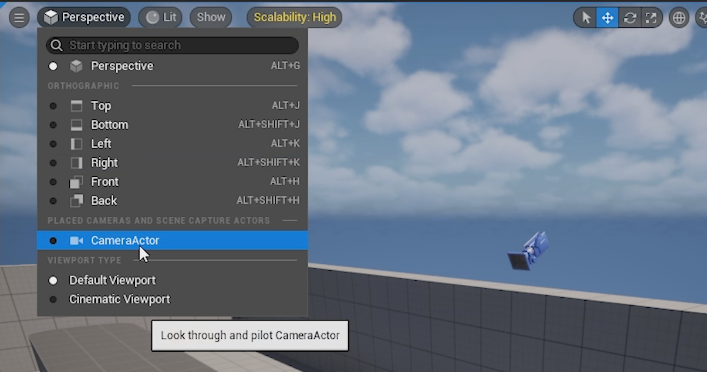
If you pick a camera from this list, that viewport will now see through the eyes of that camera. This is super useful when staging cinematics, framing shots, or adjusting camera movements. And because the viewport is linked to the camera, any time you move that camera in the world, the viewport updates instantly as well.
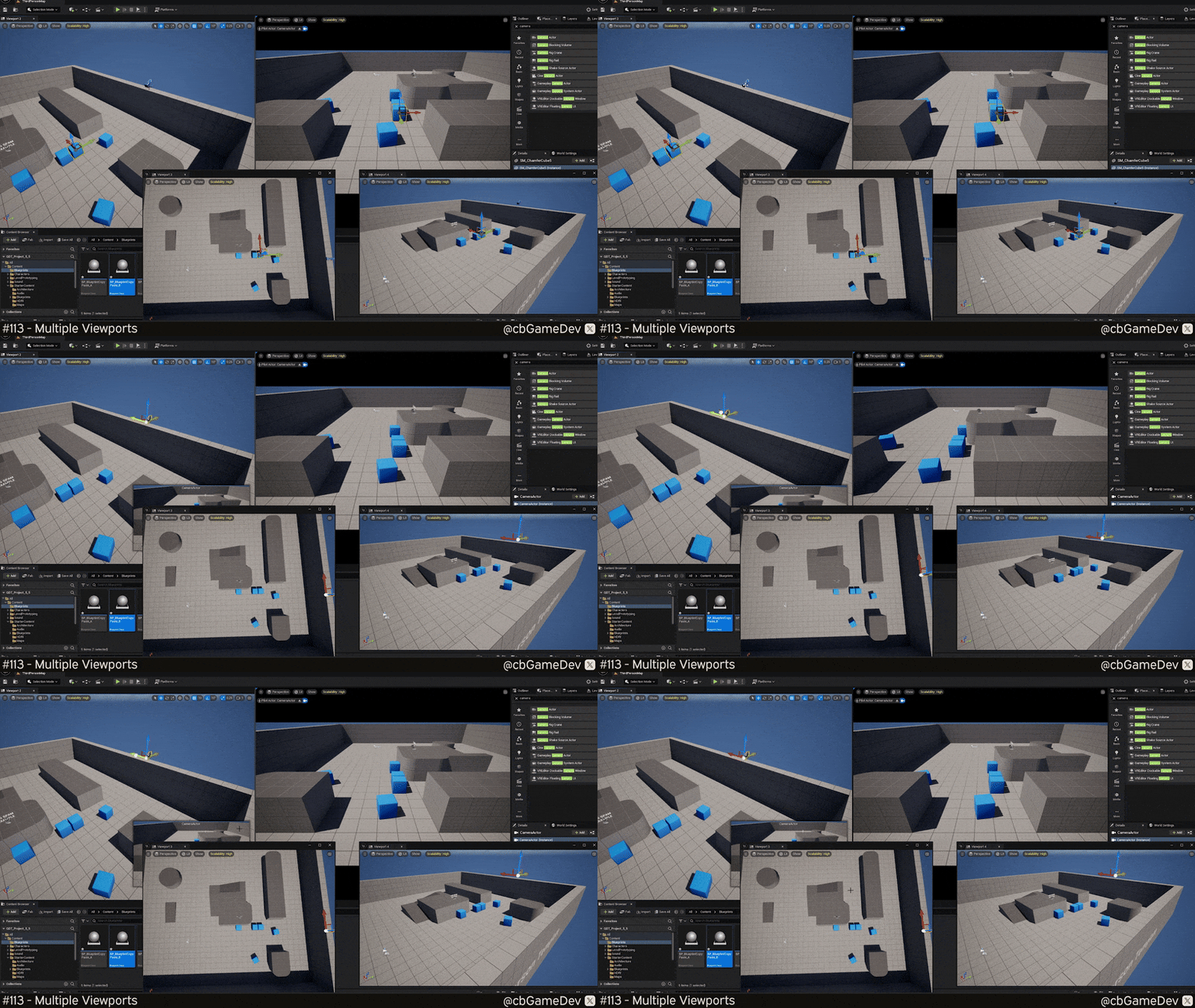
As you can see, having multiple camera views can be incredibly useful. While you’re deep in the weeds, working on your level at a micro scale, you can keep an eye on the area from a pulled-back, macro perspective at the same time. Helping you build more confidently and spot issues earlier.
Want to know when I release new quick Unreal tips & tricks?
Enjoyed this? Check out my other work: